
-
Step 1
Download the APK
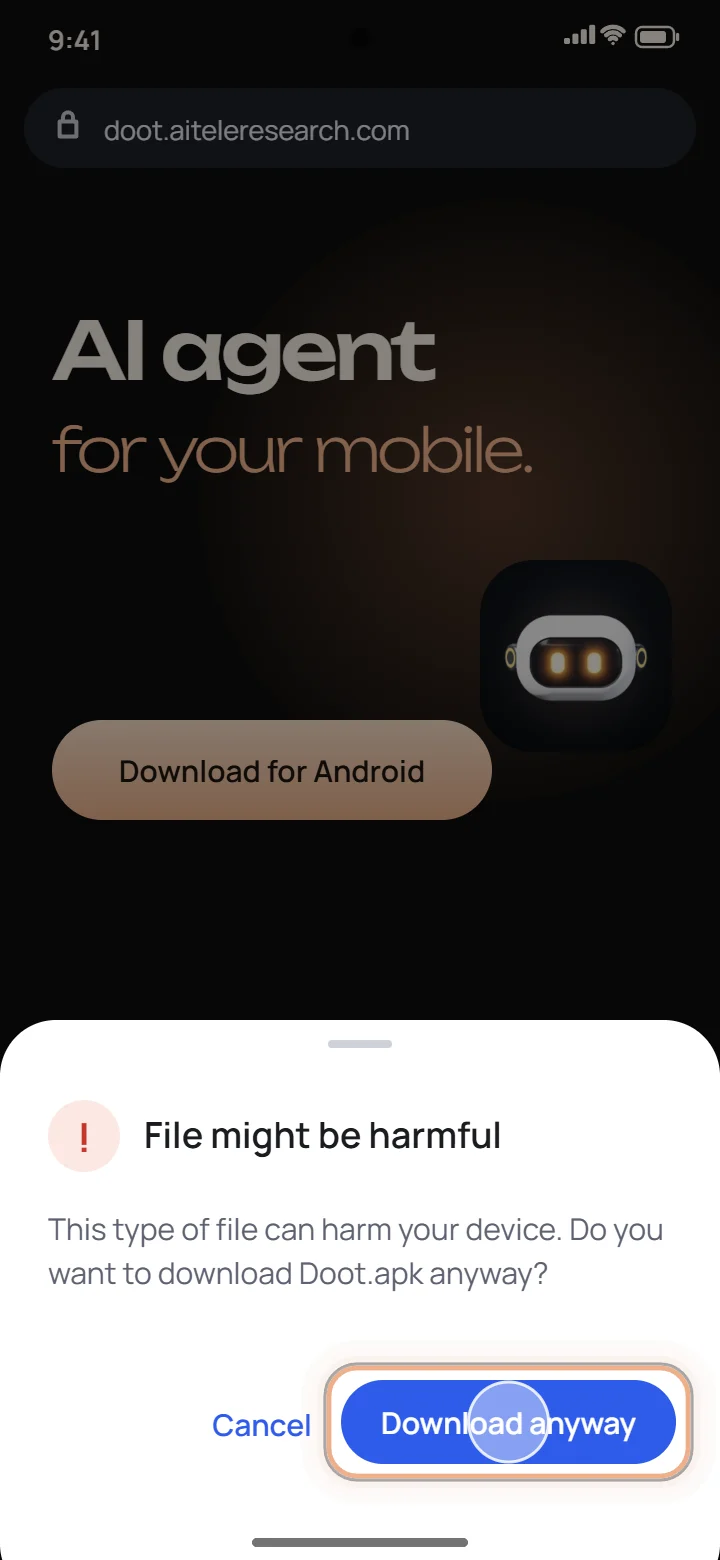
On your Android phone, open doot.aiteleresearch.com and tap Download. Chrome warns about any app file that comes from a website: tap Download anyway.
-
Step 2
Open the file
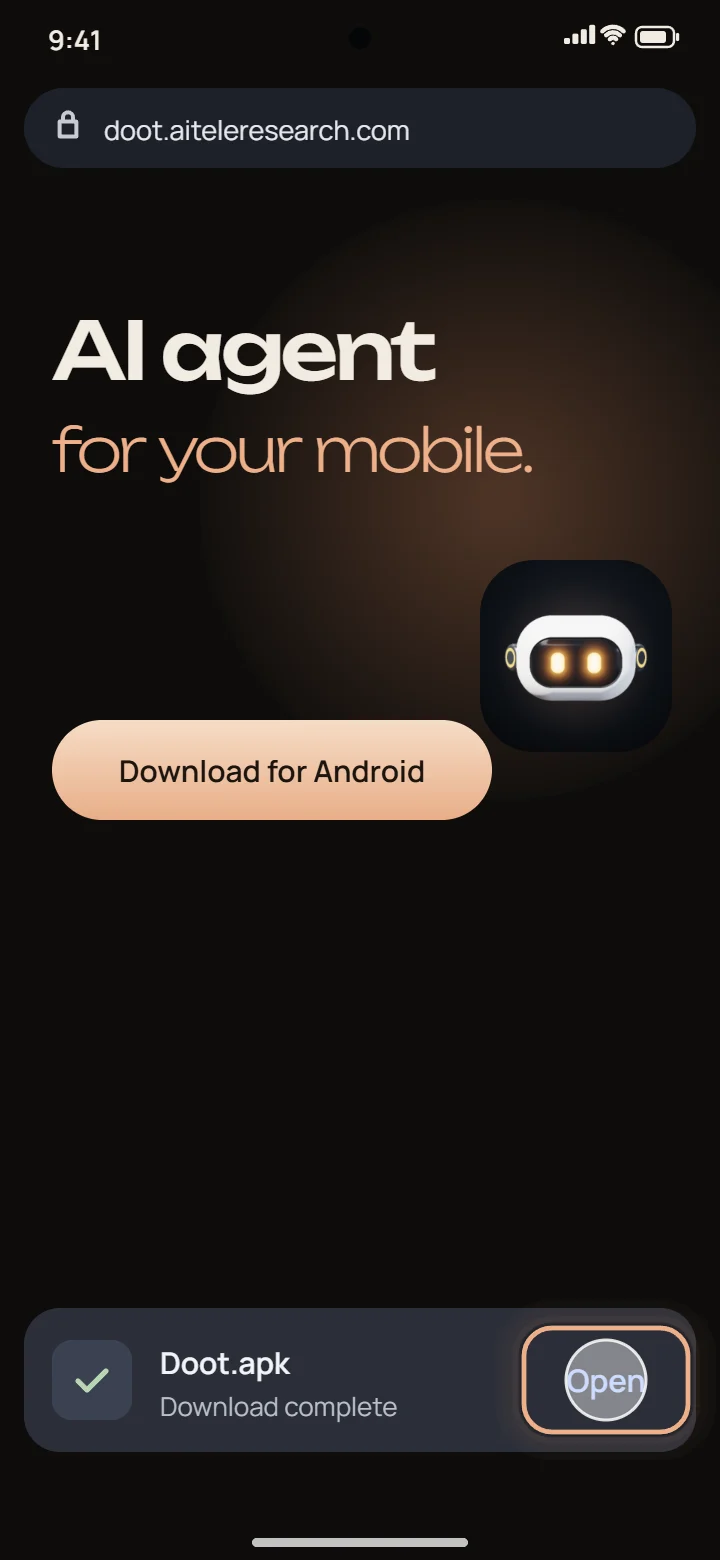
When the download finishes, tap Open. You can also find Doot.apk in your Downloads.
-
Step 3
Allow your browser to install apps
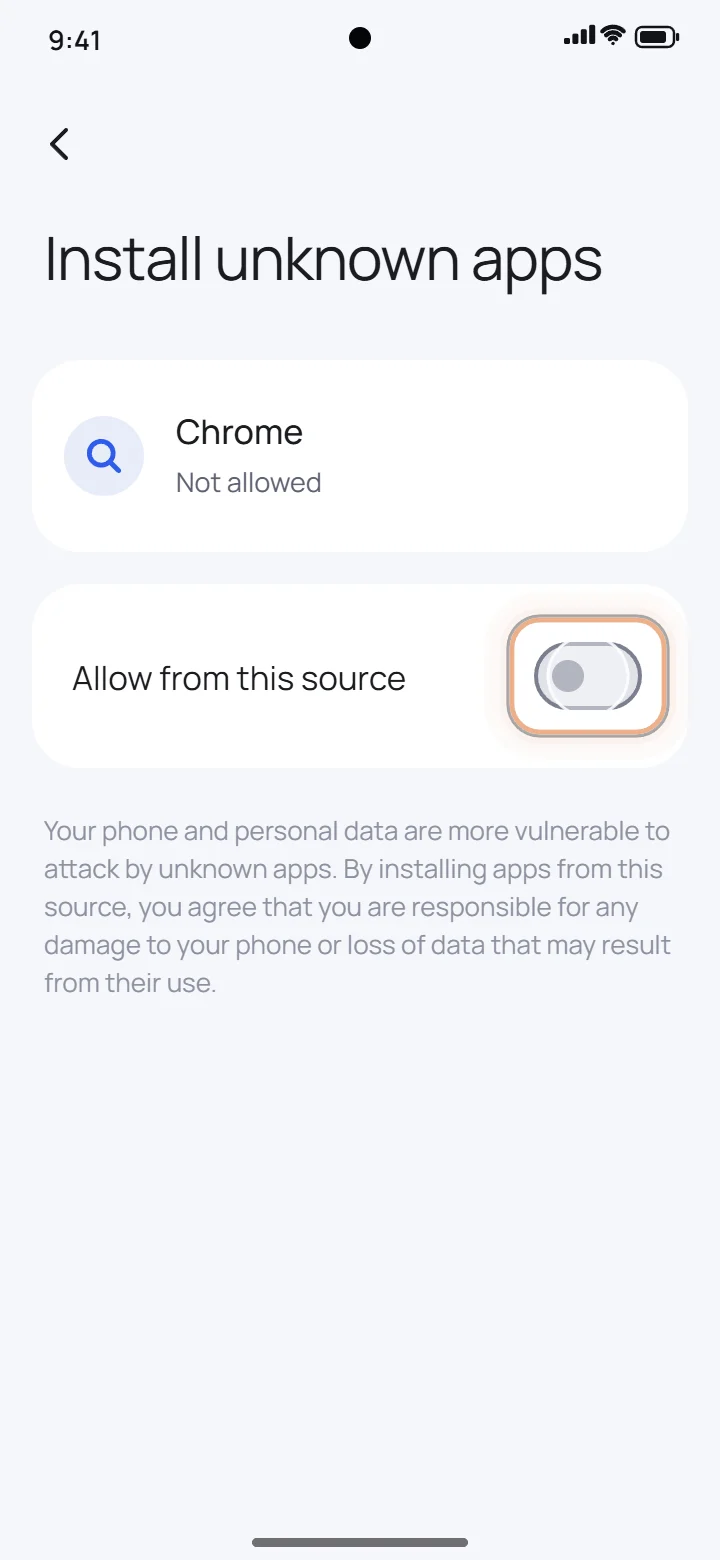
The first time, Android blocks installs from your browser. Tap Settings, switch on “Allow from this source”, then go back.
-
Step 4
Install Doot
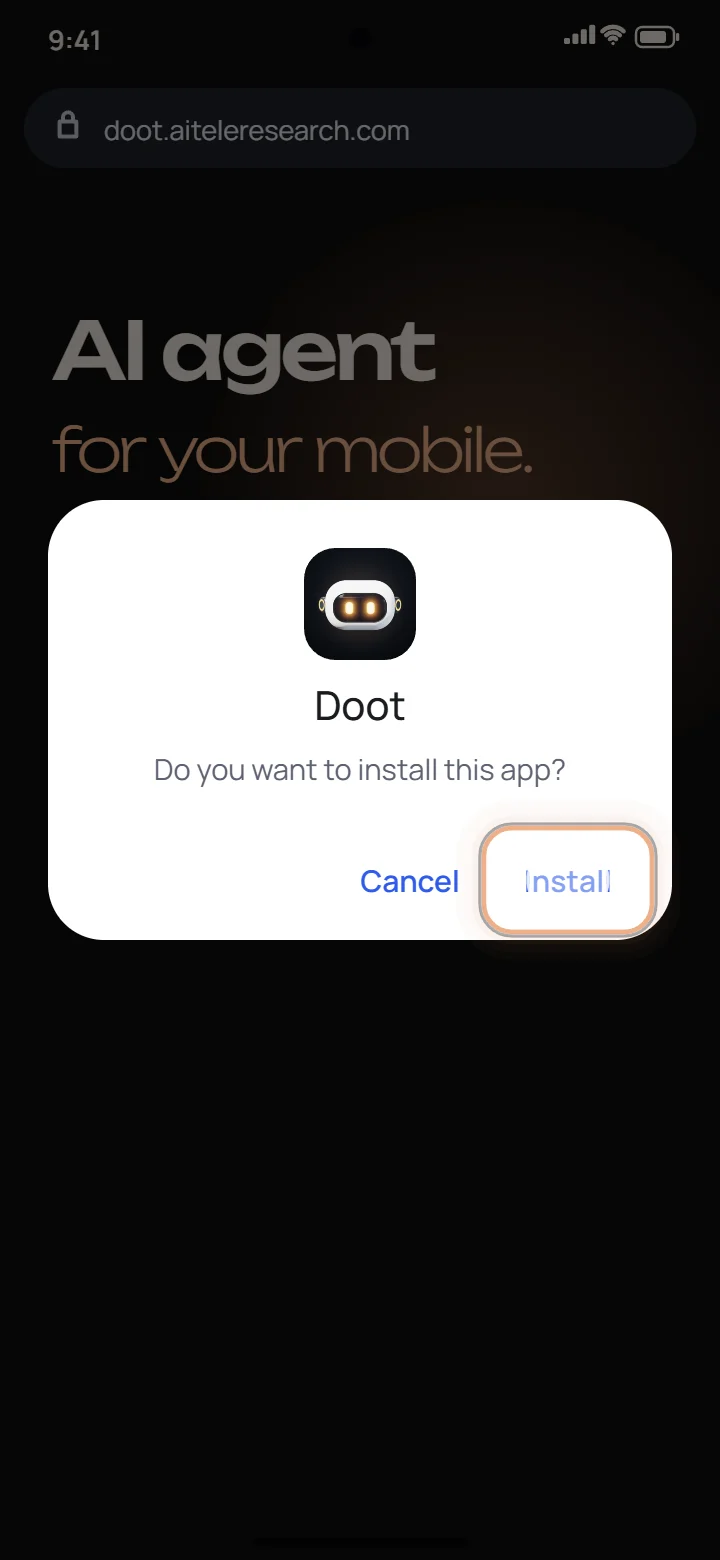
Tap Install. If Google Play Protect suggests a scan, tap Scan app. It simply hasn’t seen Doot before, because Doot isn’t on the Play Store yet.
-
Step 5
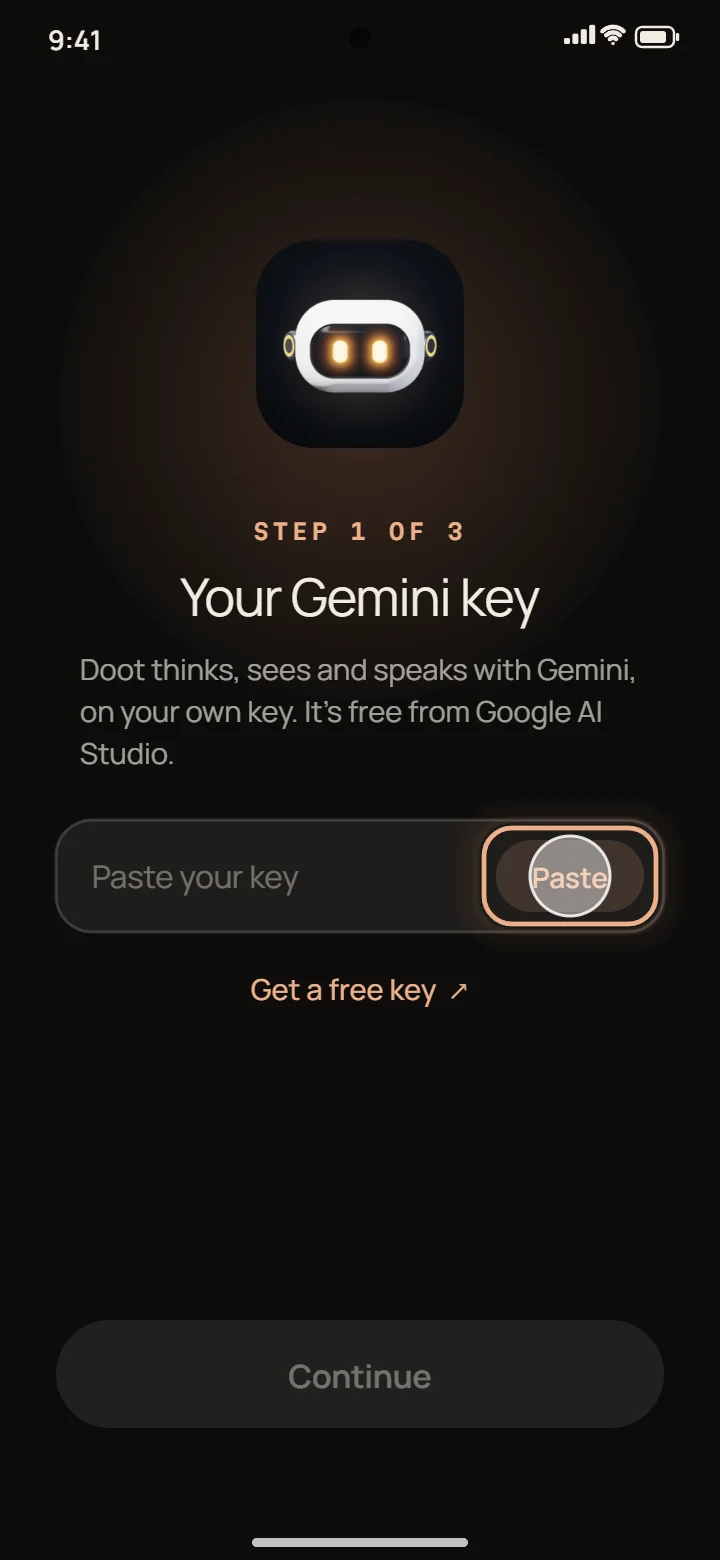
Add your Gemini key
Open Doot and paste a free Gemini API key from Google AI Studio. Doot shows you where to get one. The key stays on your phone.
-
Step 6
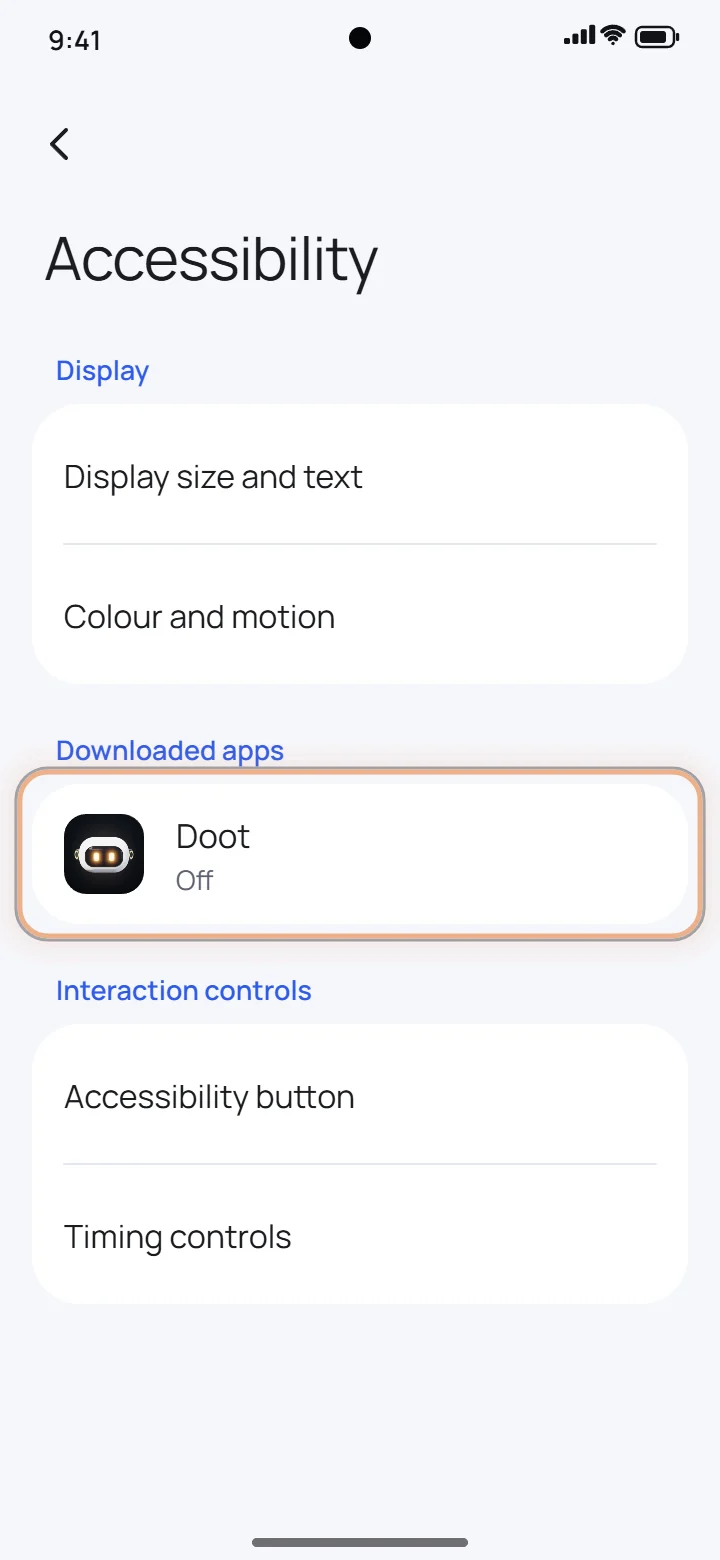
Turn on Doot’s screen helper
Doot opens Accessibility for you. Under Downloaded apps, tap Doot, turn on “Use Doot” and tap Allow. If the switch is greyed out, open App info for Doot, tap ⋮ (top right), choose “Allow restricted settings” and try again.
Why Android warns you
Apps from the Play Store come with Google’s stamp. Doot isn’t on the Play Store yet, so it comes straight from its makers as an APK file, the same kind of file the Play Store installs behind the scenes. Android asks you to confirm apps from anywhere else, which is why you see a few “are you sure?” screens. They are about where the file came from, not about Doot.
Download Doot only from doot.aiteleresearch.com. The file there is signed by Aitele Research, so every update you install later has to come from us too.
On Samsung, Xiaomi and other phones
The screens look a little different from brand to brand, but the words are the same.
- Samsung: on One UI 6 and newer, Auto Blocker can stop installs from outside the Galaxy Store and Play Store. If Install does nothing, open Settings → Security and privacy → Auto Blocker, switch it off, install Doot, and switch it back on.
- Xiaomi, Redmi and POCO: HyperOS may run its own security check and ask you to wait a few seconds before Install or Continue becomes available.
- Android 13 and newer: the Accessibility switch for Doot may be greyed out at first. Open App info for Doot, tap ⋮ in the top right, choose Allow restricted settings, and turn on Use Doot again.
After you install
Doot walks you through a short chat to learn your voice and your name. After that, say “Doot” and tell it what you need. You can switch “install unknown apps” off again for your browser; you only need it when you install a newer version from this site.
To update, download the new APK and install it over the old one. Your settings, memory and voice profile stay on your phone.
Questions
Is it safe to install an APK from outside the Play Store?
It is safe when the file comes from a source you trust. Doot’s APK comes straight from doot.aiteleresearch.com, the official site, and is signed by Aitele Research. Android warns about every app file that doesn’t come from a store; the warning is about where the file came from, not about Doot.
Why is the switch for Doot greyed out in Accessibility?
Android 13 and newer restrict accessibility for apps installed from a website until you allow it. Open App info for Doot, tap ⋮ (top right), choose “Allow restricted settings”, then turn on “Use Doot” again.
Can I switch “install unknown apps” off again afterwards?
Yes. Doot keeps working. You only need the setting again when you install a newer version from the website.
How do I update Doot?
Download the new APK from this site and install it over the old one. Your settings, memory and voice profile stay on the phone.